

Help
The Buddhas Words works well on a tablet or PC but is a bit difficult to read on smaller smart phone-sized screens. It has been tested on a range of browsers but has been developed and maintained on Google Chrome. Other browsers, such as the ones pre-installed on Android devices, generally do not work as they don't support javascript. The Buddha's Words relies on javascript to load pages, toggle Pali on and off and to do the Pali lookup etc.
The Control Panel
The control panel widget that appears on the right hand side of the screen provides navigation between previous and next pages and between the top and bottom of the page.
The Pali button appears wherever a Pali version is present (not all pages have a Pali translation). Clicking the Pali button toggles Pali on. Pali stays turned on until the button is clicked again. With Pali showing, hovering the cursor over a Pali word gives you the English translation of available words.
Pali can also be toggled on by pressing the * key.

Mobile Devices
The site has been designed to work well on a wide range of screen sizes. On smaller screens a "hamburger symbol" appears.

Dark Mode
If you'd prefer Dark Mode, the control at the top left of the screen toggles between dark and light modes. Dark mode can also be toggled on and off by pressing the d key.

Navigation Around The Site
Use the navigation at the top of the page to navigate to other pages.
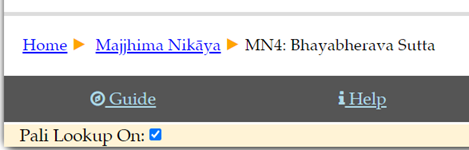
Alternatively, the “breadcrumbs” at the bottom of each page contain clickable links to take you to the top of the current level, the top of the next higher level etc. or to this page. The last entry in the breadcrumbs is the current page.
Keyboard Shortcuts
There are some keyboard shortcuts to assist in navigating around the site:
Pressing the p key takes you to the previous sutta while pressing the n key takes you to the next sutta.
Pressing the d key turns dark mode on and off
Pressing the * key turns Pali on and off
Pressing the i key takes you to the next higher level of navigation
Pressing the h key takes you to the Home Page
Pressing the c key takes you to the Contact Page
Pressing the ? key takes you to the Help Page
Pressing the Control+Alt+l (i.e. lower case "L" for Lookup) key combination turns the Pali Lookup on and off. For Android devices there is a check box at the bottom of each page which also turns Pali lookup on and off.
1. Installation using Kiwix.
Venerable Nyanamagga has let The Buddha's Words team know about kiwix, a free program dedicated to providing offline access to free educational content (To learn more see here: kiwix.org/en/about_us/"). Kiwix is easy to run on virtually any device and this has greatly simplified installation (as well as taking up a lot less room on your device).
Go to The Kiwix Applications Page
Android
If you have an Android device, follow the Direct APK link to install Kiwix. Note that the Play Store version is limited to scanning and opening ZIM files from reserved app directories while the full version can load ZIM files from any storage location.
Please also note that during installation you will need to allow access to read from local storage.
Windows
If your operating system is Windows, download and install Kiwix for Windows.
iOS and MavOS
If you are using a Mac or iPhone, follow the link to the App Store to download Kiwix for iOS and macOS. If you have a Mac, you could also follow the macOS.dmg link to install Kiwix.
GNU/Linux
For installing on GNU/Linux, follow the instructions in the Kiwix for GNU/Linux section.
2. Download the latest ZIM archive of The Buddha's Words.
Once you have Kiwix installed, download the latest ZIM version of The Buddha's Words from here. There are also archives in both zip and 7-zip format that were used in the previous methods of installation and still used by some people. Please ignore the zip and 7-zip files.
Place the downloaded ZIM file in a suitable location.
Run Kiwix and open the ZIM file.
Done
If it doesn't work ...
If ...
you've followed the instructions above and
have the files in the location suggested and
you're using one of the recommended browsers
... and it still doesn't work, please email the Buddha's Words team detailing the problem you're having and we'll do our best to help. Please see the Contact Page for our contact details.
If it does work ...
Please let us know if you come up with anything that you found works well. Please also send us your suggestions. Thanks!